/dashboardHome
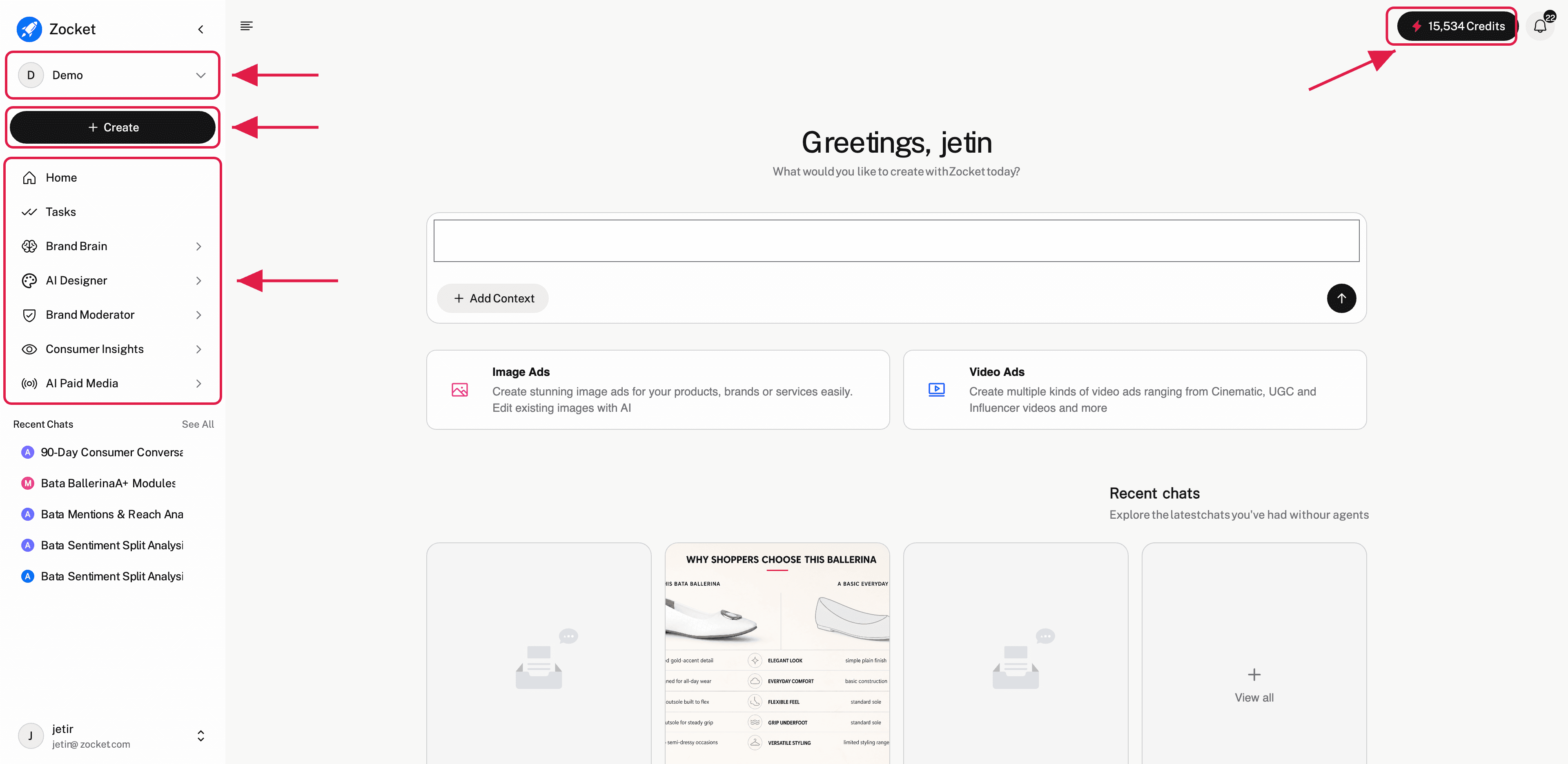
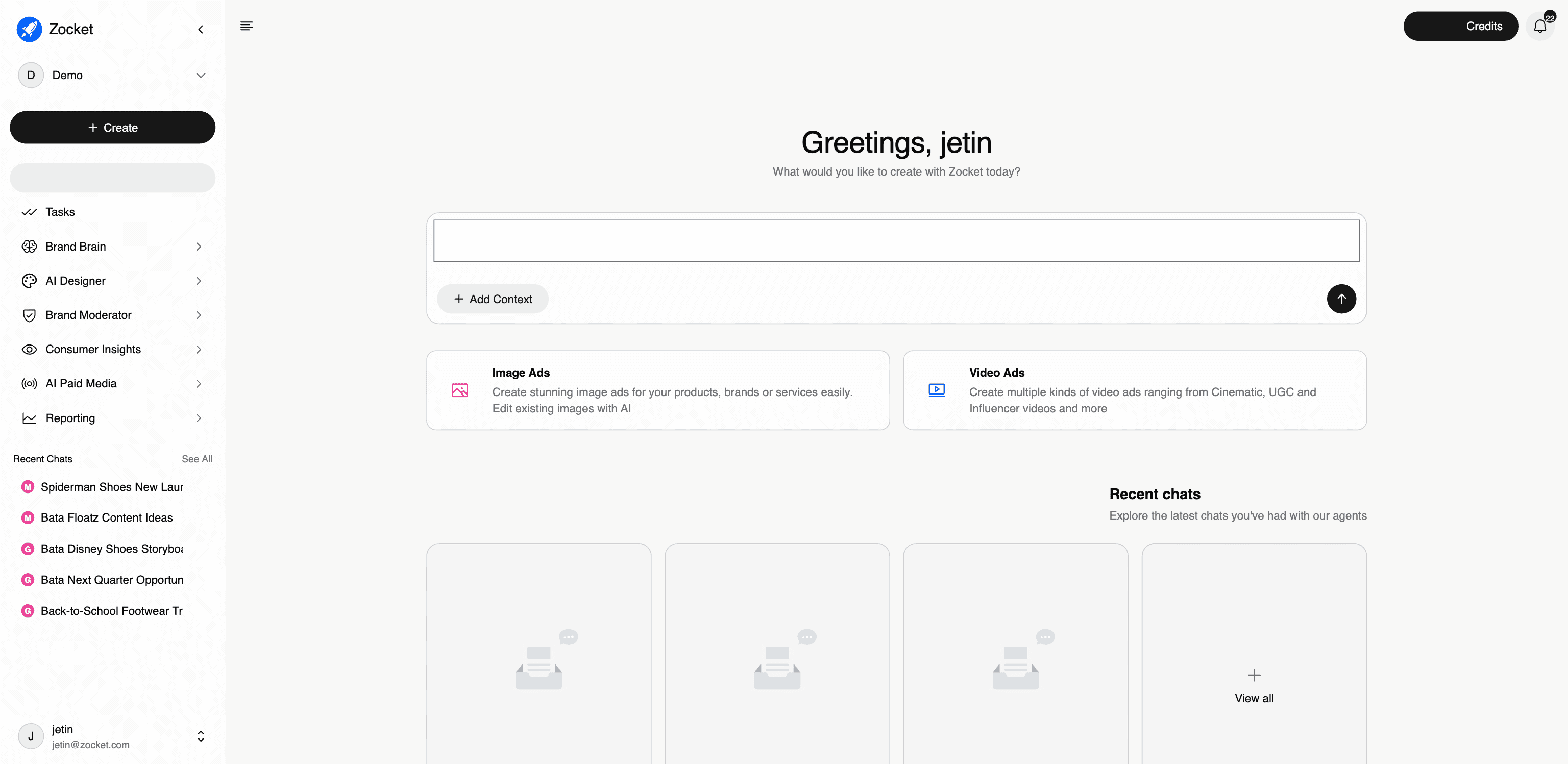
The first screen after login. One prompt box, "What would you like to create with Zocket today?", routes whatever you type to the right AI agent. You don't need to know which module does what: type it, attach context if you have it, and go.
What this does for you: The first screen after login. One prompt box, "What would you like to create with Zocket today?", routes whatever you type to the right AI agent. You don't need to know which module does what: type it, attach context if you have it, and go.
What's on the screen:
- The prompt box with an Add Context button, attach briefs, reference images, or files so the agent starts with your context instead of a blank slate
- Two quick-start cards: Image Ads (create or edit static ads) and Video Ads (Cinematic, UGC, and Influencer video styles)
- Recent chats: every past agent session, so you can resume work instead of starting over
- The credit meter (top right): your remaining balance, always visible
- The org switcher (top left): for users who manage more than one brand workspace
- The left panel with the full workspace: Tasks, Brand Brain, and four agents, AI Designer, Brand Moderator, Consumer Insights, and AI Paid Media
When to come here: Every session starts here. Use it when you know what you want ("make a Diwali offer creative for Gold Loan") but don't care which app does it, the router picks the right agent for you.
Note: the workspace has grown beyond the three original agents. Brand Brain (the live knowledge graph) and Tasks (the shared AI-suggestion → work queue) are now first-class left-nav destinations, and Brand Moderator is its own agent alongside Consumer Insights rather than a tab inside it.
The screen, annotated
1Getting Started (dashboard navigation)