/ai-designer/approvalsApprovals
The creative approval queue. Every image, video, concept, or storyboard your team submits lands here with a clear status, Pending, Approved, or Rejected, and a named approver. Configured Flows let you define who must sign off on what, so nothing ships without the right eyes on it.
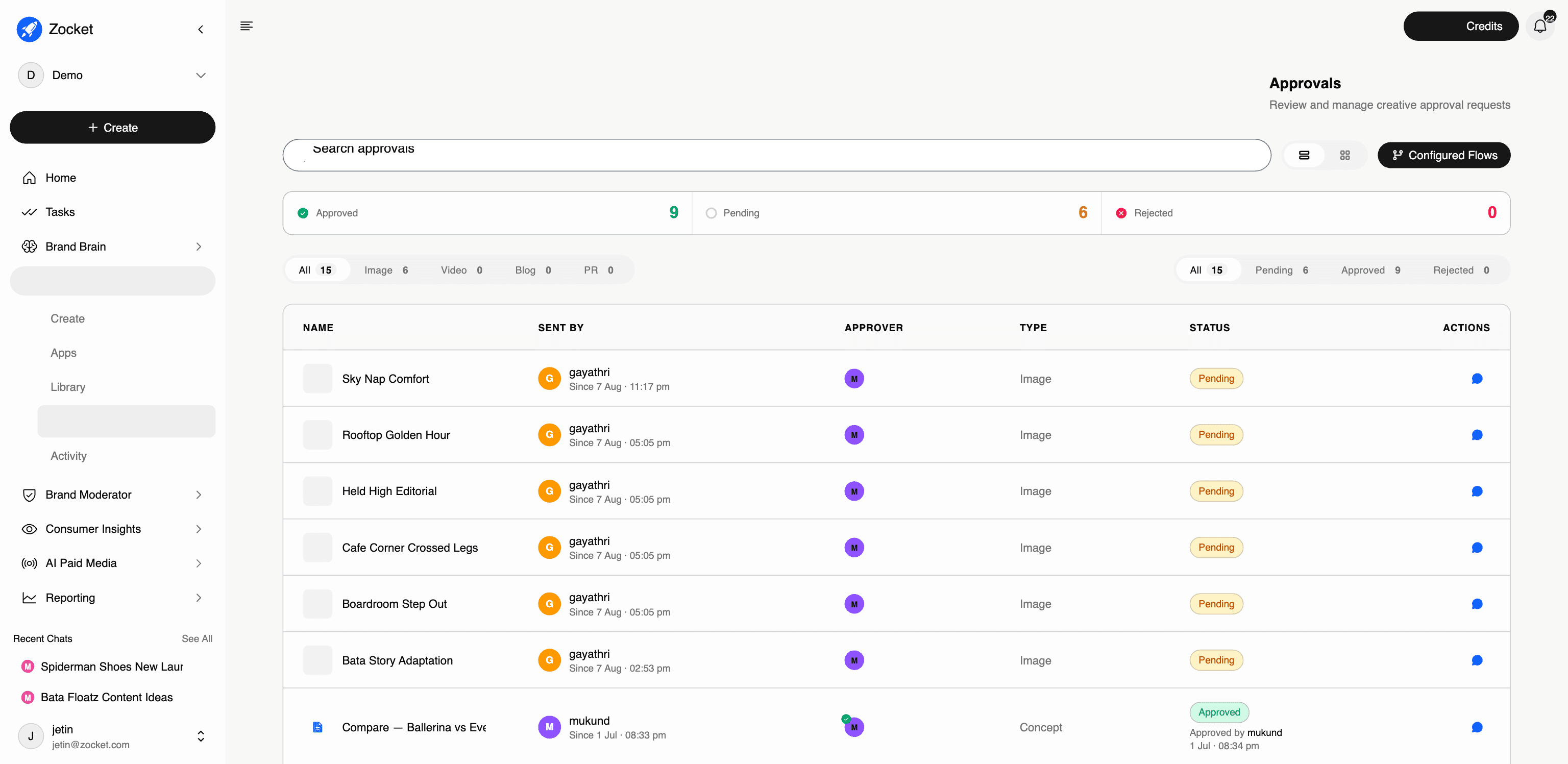
What this does for you: The creative approval queue. Every image, video, concept, or storyboard your team submits lands here with a clear status, Pending, Approved, or Rejected, and a named approver. Configured Flows let you define who must sign off on what, so nothing ships without the right eyes on it.
What's on the screen:
- Three headline counters: Approved / Pending / Rejected: your approval backlog at a glance
- Filter by asset type: Image, Video, Concept, Storyboard
- A queue table with name, sent by, approver, type, status, and actions per request
- Configured Flows: set up standing approval rules (who approves which asset types) instead of routing every request manually
- List and grid views, plus search across all approval requests
Why it matters: This replaces the old standalone Brand Governance module, governance now happens inside the creative workflow, not in a separate tool. Compliance-sensitive clients (BFSI especially) get their sign-off chain without slowing everyone else down.
When to come here: Daily if you're an approver, clear the Pending count. Before a campaign ships, to confirm every asset cleared its flow. During onboarding, to set up the client's Configured Flows to mirror their internal sign-off chain (brand → compliance → legal, for regulated industries).
The click-path, step by step
1Approval status summary 
2An approval request 
- ActivityThe audit trail for creative production. Every concept, image, video, and storyboard with its full activity history, who did what, when, and how long approvals took. This is where a creative lead sees whether production is actually flowing or silently stuck.
- Apps26 specialized AI creative agents, each tuned for one job. Instead of one generic image generator, you pick the specialist: an Image Ad Creator for statics, a UGC Video Creator for influencer-style videos, a Localization Studio for regional adaptation, a Compliance Checker for brand-rule audits. Specialists beat generalists, each app knows what good looks like for its format.
- CreateThe starting point. You describe what you want in plain English ("Diwali campaign for our women's footwear line, festive but premium"), the system asks a few clarifying questions, and it generates creative concepts grounded in your brand DNA. The "Bacon" agent picks the right model, format, and brand context. You don't have to think about prompts.
- LibraryThe governed home for every approved asset, generated by the AI, uploaded by your team, or pushed in from an agency. Replaces the chaos of Drive folders, Figma libraries, and a DAM that nobody updates. Search by natural language ("blue product shot, festive, no model") or by image similarity.